


Did you know that VendorSolutions.org allows you to easily manage vendor contracts that auto-renew? Here’s how!
Login and Navigation to a Vendor’s Page
Begin by logging into the VendorSolutions.org site with your email and password.
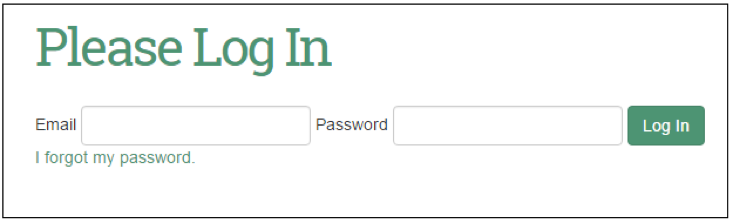
Once logged in successfully, the VendorSolutions.org welcome screen displays.
Select either the ‘Create/Edit Vendor’ option from the top navigation bar, or the ‘View/Edit Vendors’ button from the available page options. Selecting any vendor listed on the ‘Edit/View a Vendor’ page will take you to that entity’s corresponding profile page.
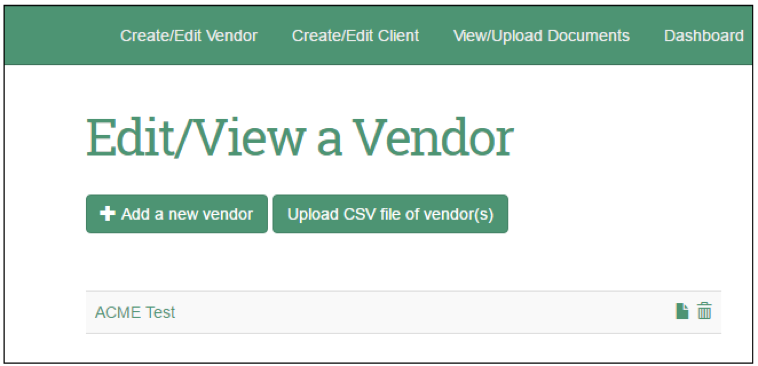
Contract Management Fields
To ensure that contracts auto-renew properly, complete the following fields on the vendor’s page.
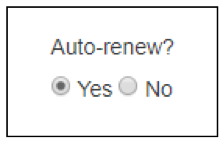
1. Set the ‘Auto-renew?’ field to “Yes” using the radio button options provided:
2. Enter the original contract start date, the initial term of the contract, and the renewal term of the contract:
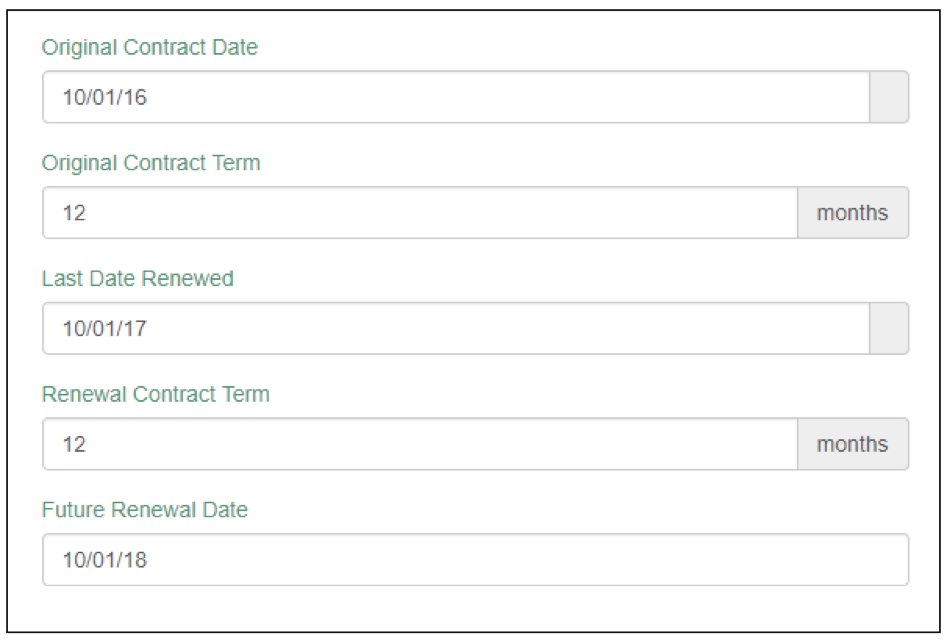
Select the ‘Update This Vendor’ button at the bottom of the page to save the changes.

After completing this process, the date will automatically push forward the correct number of months specified in the ‘Renewal Contract Term” to advance the date accordingly. Using the screenshot example above, on 10/01/18, the future renewal date will advance to 10/01/19 based on the 12-month renewal contract term specified.
Did you find this blog helpful? Contact us and let us know!